
Setup
Let’s set up Logseq Copilot in less than 5 minutes.
Logseq Copilot talks to the HTTP API server of the Logseq desktop app, so you set up two things: the server in Logseq, then the connection in the extension.
Which Logseq?
Section titled “Which Logseq?”| Logseq | Graph type | Supported |
|---|---|---|
| 0.10.x | File graph (Markdown or Org files on disk) | Yes |
| 2.x | DB graph | Yes |
There is no setting for the graph type. After you connect, the extension asks Logseq which kind of graph is open and uses the matching search. If you switch graphs in Logseq, the next search follows.
Setup Logseq API Server
Section titled “Setup Logseq API Server”Enable API Service
Section titled “Enable API Service”-
Open Logseq Settings.

-
Go to Features → Enable HTTP APIs Server

Setting Authorization Token
Section titled “Setting Authorization Token”-
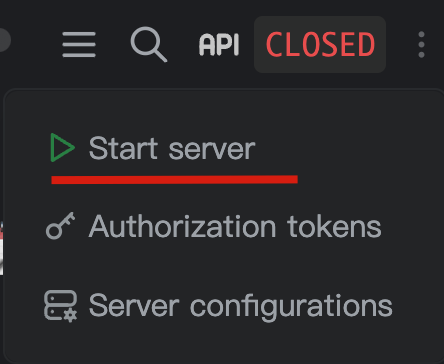
Go to logseq copilot tool bar, Click API icon.

-
Click Authorization tokens.

-
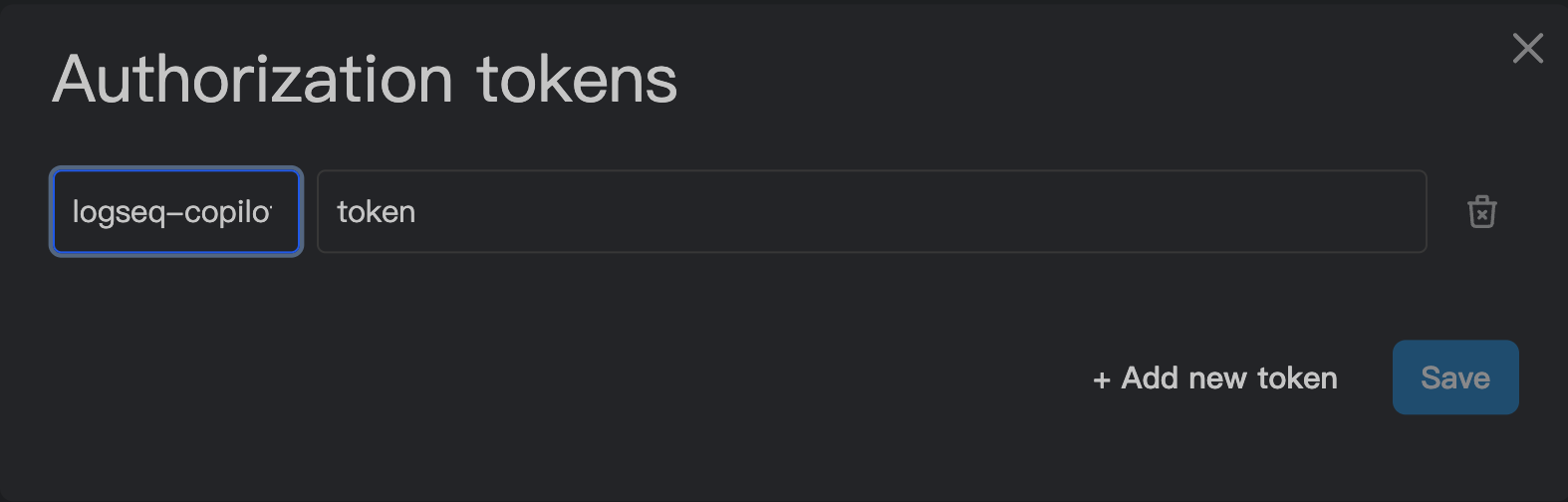
Click Add new token.

-
You will see a row as below.

-
Fill name as
logseq-copilot, value is a secret, eg.secret-value, then click Save.
Setting API Server Auto Start
Section titled “Setting API Server Auto Start”-
Go to logseq copilot tool bar, Click API icon.
-
Click Server configurations.

-
Toggle on Auto start server with the app launched.

-
Click Start Server to start the API server.
Setup Browser Extension
Section titled “Setup Browser Extension”Connect to Logseq
Section titled “Connect to Logseq”-
Open the Logseq Copilot extension options page.

-
Enter your Logseq API server details:
- Host: Usually
localhost - Port: Usually
12315 - Authorization Token: The token you created earlier
- Host: Usually
-
The extension saves the values as you type and checks the connection a moment after you stop typing. Click Connect to check it right away. Logseq also pops up a “Logseq Copilot Connect!” message.

-
You should see Connected to Logseq v…! on the button when it works. A link to open your graph in Logseq shows up next to it.

Verification
Section titled “Verification”To verify that everything is working correctly:
- Check API Server Status: Make sure the Logseq API server is running
- Test Connection: The Connect button on the Settings page should say “Connected to Logseq v…!”
- Try a search: Search for a word from one of your notes on Google. A Logseq panel with matching notes should show up next to the results.
- Try the sidebar: Click the Logseq Copilot icon in the toolbar of any web page. The sidebar opens and lists the notes that mention that page, if there are any.
Troubleshooting
Section titled “Troubleshooting”Common Issues
Section titled “Common Issues”- Connection Failed: Check if the Logseq API server is running and a graph is open in Logseq
- Wrong Host or Port: Make sure they match the API server (usually
localhostand12315) - Invalid Token: Verify that the authorization token matches exactly
- Firewall Issues: Check if your firewall is blocking the connection
- Nothing shows up on a page: Reload pages that were open before you installed or updated the extension
Getting Help
Section titled “Getting Help”If you’re still having trouble:
- Check our GitHub Discussions
- Make sure both Logseq and the browser extension are up to date
- Try restarting both Logseq and your browser
Next Steps
Section titled “Next Steps”Once everything is set up: