
Search Engines
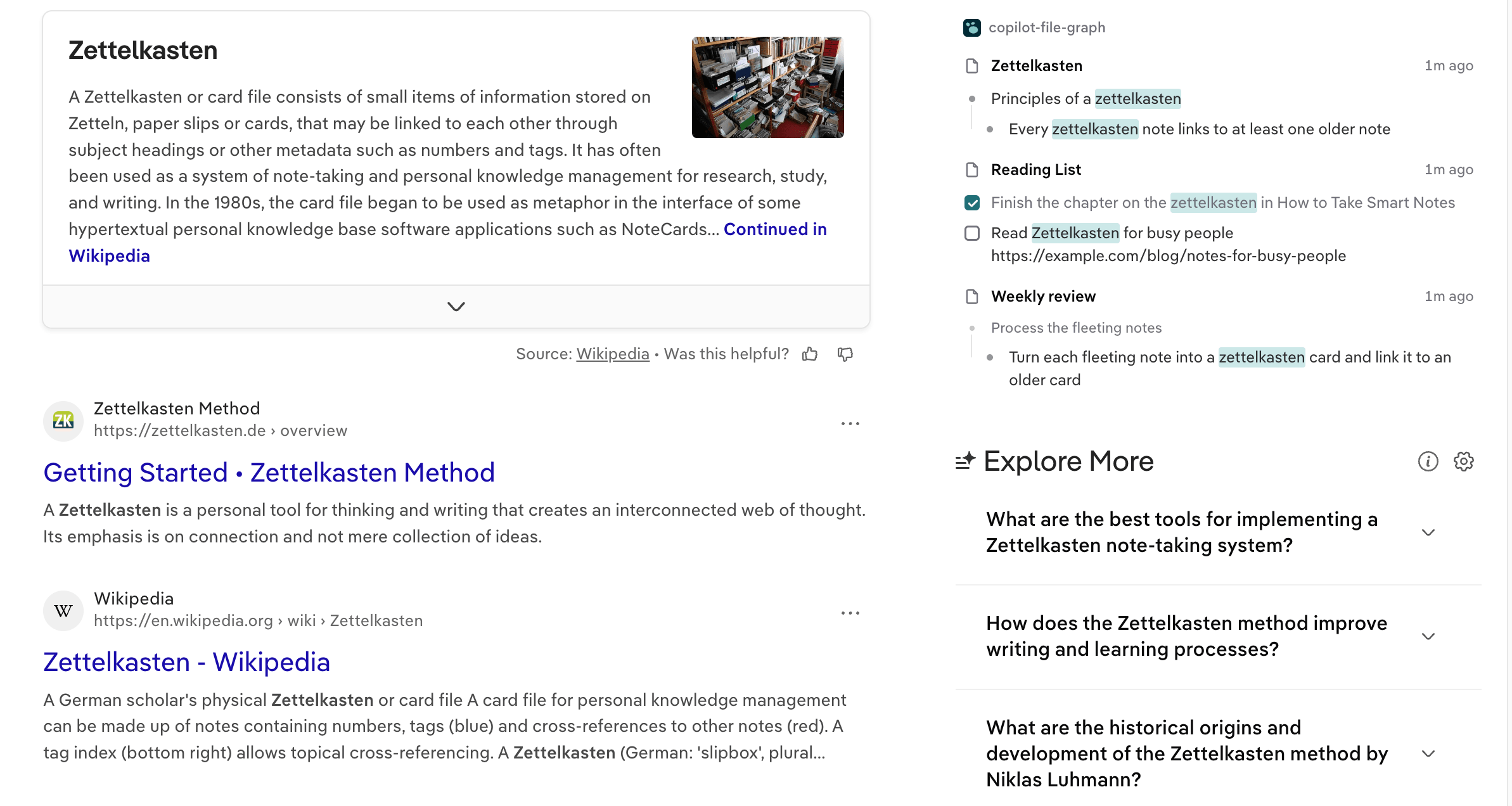
When you search on a supported search engine, Logseq Copilot adds a panel to the results page. It lists the blocks and pages of your graph that match your keywords, so your own notes sit next to the web results.
Supported Search Engines
Section titled “Supported Search Engines”These engines are built in and turned on by default:
| Engine | Engine |
|---|---|
| Bing | |
| DuckDuckGo | Ecosia |
| Yandex | SearX / SearXNG |
| Baidu | Kagi |
| Startpage | Brave Search |
Turn engines on and off in the extension options, under Search Engine. Turn off the ones you do not use. You can add your own engine too, see Custom Search Engines below.
What the Panel Shows
Section titled “What the Panel Shows”- The graph name at the top. Click it to open the graph in Logseq. Point at the panel to show the gear button for the extension options.
- The pages that mention your keywords, best match first. Each page row has a page icon (a calendar for journals), the title and how long ago the page changed. Journals show only their date. The first three pages show; the arrow below them shows the rest.
- The best blocks of each page, two at first. Click +N to show the others. A page that matches only by its title shows no blocks.
- The context of a block. Above a nested block, a gray line shows its parent block. In a journal it also shows the top-level block, so you can tell the topics of a day apart. Blocks that share a parent are listed under it once.
- Your keywords marked in the blocks and the context lines. Page references show in teal, tags in gray.
- Tasks show a checkbox: checked for
DONE(the text is not struck through), a dot forDOINGandNOW.
Click a page, a block or a context line to open it in the Logseq desktop app, so Logseq has to be running.
If nothing matches, the panel shows a single line: “No related notes in Logseq”. If Logseq cannot be reached or the token is wrong, it shows the reason and a link to the options page.
The panel follows the theme of the page, in light and in dark.
How the Search Works
Section titled “How the Search Works”- The search uses the keywords of your query only. It does not search for the web address of the results page.
- The recall rules that match the address of the results page still apply to the results. For example a rule that excludes a page of your graph hides it here too.
- When the address of the results page changes without a reload (single-page results, back and forward), the panel searches again.
- Everything runs on your computer. The query goes to the Logseq API server you set up, nowhere else.
Custom Search Engines
Section titled “Custom Search Engines”Under Search Engine in the options, click Add Custom Search Engine in the Custom Search Engines section to teach Logseq Copilot another search page.
-
Fill in Name (required), and optionally an Icon and a Description.
-
URL Pattern (required): a regular expression that is tested, case-insensitively, against the address and the host name of the page. A plain host name such as
search.example.comworks too. -
Query Selector (required): where to read the search keywords from.
?qreads the URL parameterq. A leading?means a URL parameter.- Anything else is a CSS selector, such as
#search-input. The value of that input is used, or its text if it is not an input.
-
Element Selector (required): a CSS selector for the element on the page that the panel is placed in, such as
#sidebar. -
Insert Position: where the panel goes relative to that element:
beforeit,afterit, as itsfirstchild, or as itslastchild.
You can edit or remove a custom engine later from the same list. If more than one enabled engine matches a page, the first one is used. Built-in engines added by an update go after the custom ones, so a custom engine you made for the same site stays in use until you turn it off. When a site changes its layout, an update gives its built-in engine the new place for the panel and keeps the engine on or off as you set it. Custom engines are never changed.
Not on Search Engines?
Section titled “Not on Search Engines?”The panel only shows on search engine results pages. For any other web page, click the Logseq Copilot icon in the toolbar to see the notes that mention it. See Recall Rules.