
Recall Rules
A recall rule changes how Logseq Copilot looks up your notes for the websites it matches. Use rules when a site gives noisy results, for example because its web addresses carry a long hash or query, or because you want only some pages of your graph to show up there.
Open the extension options and choose Recall Rules.
Where Rules Apply
Section titled “Where Rules Apply”Rules apply whenever Logseq Copilot looks notes up for a page:
- The sidebar: the notes it lists for the page you are on.
- The toolbar badge: the number on the icon counts the notes that are left after the rules.
- The search engine panel: the rules that match the address of the results page apply to its results. See Search Engines.
The search box in the sidebar is not changed by rules.
How a Rule Matches
Section titled “How a Rule Matches”Every rule has a URL pattern, a regular expression tested, case-insensitively, against the full address of the page, hash and query included. Examples: github\.com or .*reddit\.com.*. A rule with a pattern that is not a valid regular expression is skipped.
Several rules can match one page. All enabled rules that match are applied together, and their settings combine:
| Setting | When several rules match |
|---|---|
| Ignore hash, query, path segments | Applied one after the other to the address |
| Recall scope | The deepest scope (the most levels) |
| Exclude and prefer keywords | Collected from all rules |
| Restrict to pages | Only pages named in every rule |
| Exclude pages | Pages named in any rule |
| Max results | The smallest number |
What a Rule Can Do
Section titled “What a Rule Can Do”Query processing
Section titled “Query processing”How the address of the page is turned into a lookup.
- Ignore hash fragments: drop the
#…part of the address first. Useful for single-page apps that route with the hash. - Ignore query parameters: drop the
?…part of the address first. - Ignore path segments: remove the listed segments from the path of the address first, such as
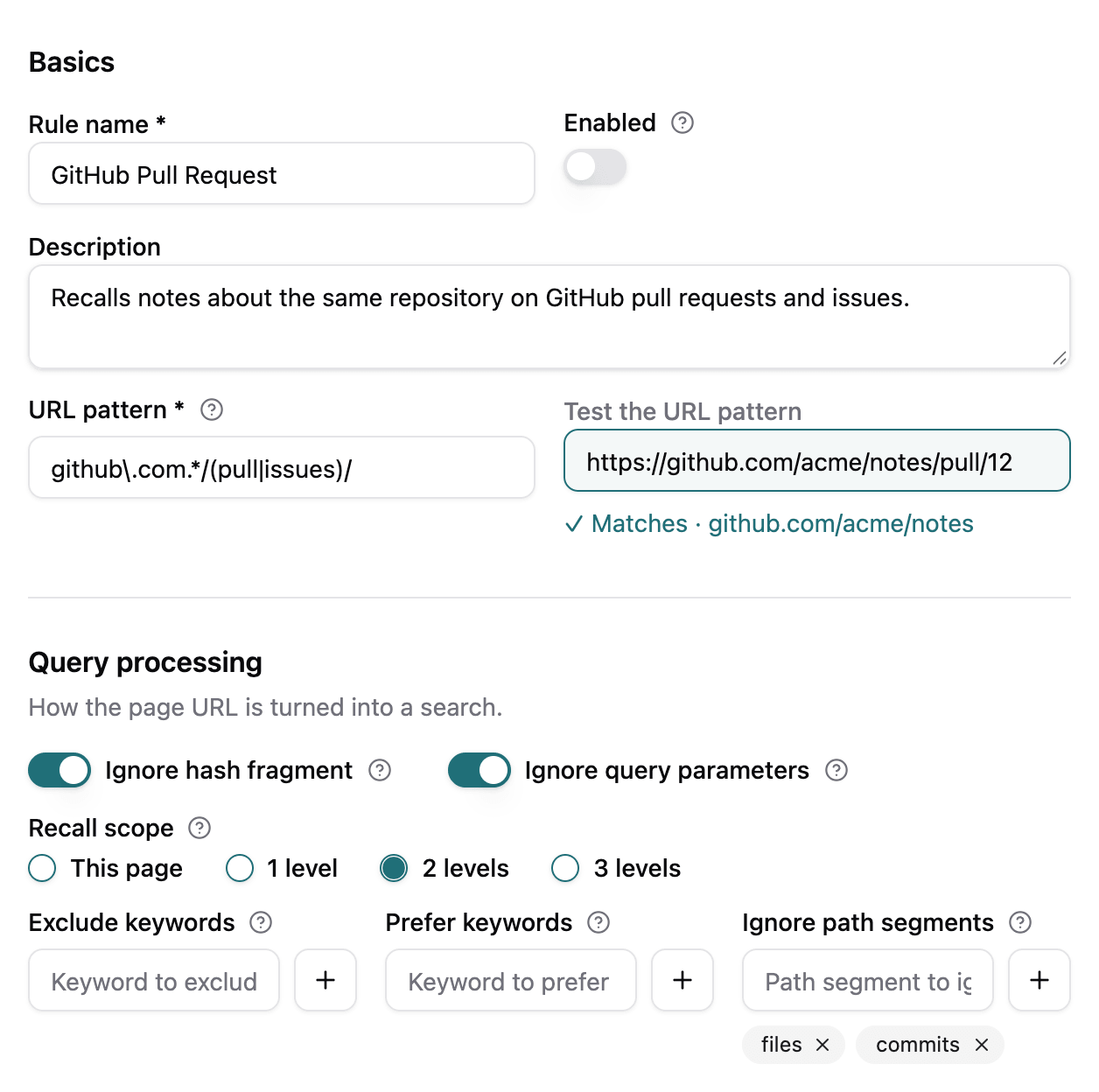
filesorcommits. - Recall scope: also recall notes about the parent paths of the page. This page recalls notes about the page only. 1 level, 2 levels and 3 levels also recall notes about the paths above it, down to that many path segments. On
github.com/owner/repo/pull/42, 2 levels recalls notes about the pull request, then notes aboutgithub.com/owner/repo. It never goes up to the bare host. The Test the URL pattern box in the editor shows the address a rule recalls up to. - Exclude keywords: hide the blocks whose text contains one of these words (case-insensitive).
- Prefer keywords: show the blocks that contain these words first.
Search scope
Section titled “Search scope”Where in your graph the results may come from. Names are page names of your graph.
- Restrict to pages: only show results from these pages.
- Exclude pages: never show results from these pages.
A name has to match the whole page name. It ignores case and surrounding spaces, but “Work” does not hide “Homework”. The scope applies to blocks and to page results. While a scope is set, a result whose page cannot be determined is hidden, so excluded content cannot slip through.
Result filtering
Section titled “Result filtering”- Max results: show at most this many results. In the sidebar it counts blocks. In the search engine panel it counts pages, and the panel never shows more than 6. Empty means no limit.
- Show recent results first: sort the results from the newest to the oldest.
Built-in Rules
Section titled “Built-in Rules”Two rules come with the extension. You can edit or delete both.
- Single-page apps (on): matches every page and ignores the hash of the address. It has no result limit.
- GitHub Pull Request (off): matches pull requests and issues on GitHub. It ignores the hash and the query, drops the
filesandcommitspath segments, and has a recall scope of 2 levels, so it also recalls the notes about the same repository. The notes about the page itself stay first.
Create a Rule
Section titled “Create a Rule”- Click Add rule.
- Give it a name, and a URL pattern. The Test the URL pattern box lets you paste an address to see if it matches.
- Set the options you need and save.
In the list, each rule has a switch to turn it on and off, an edit button and a delete button. Every rule also has a Test URL pattern box.