
Sidebar
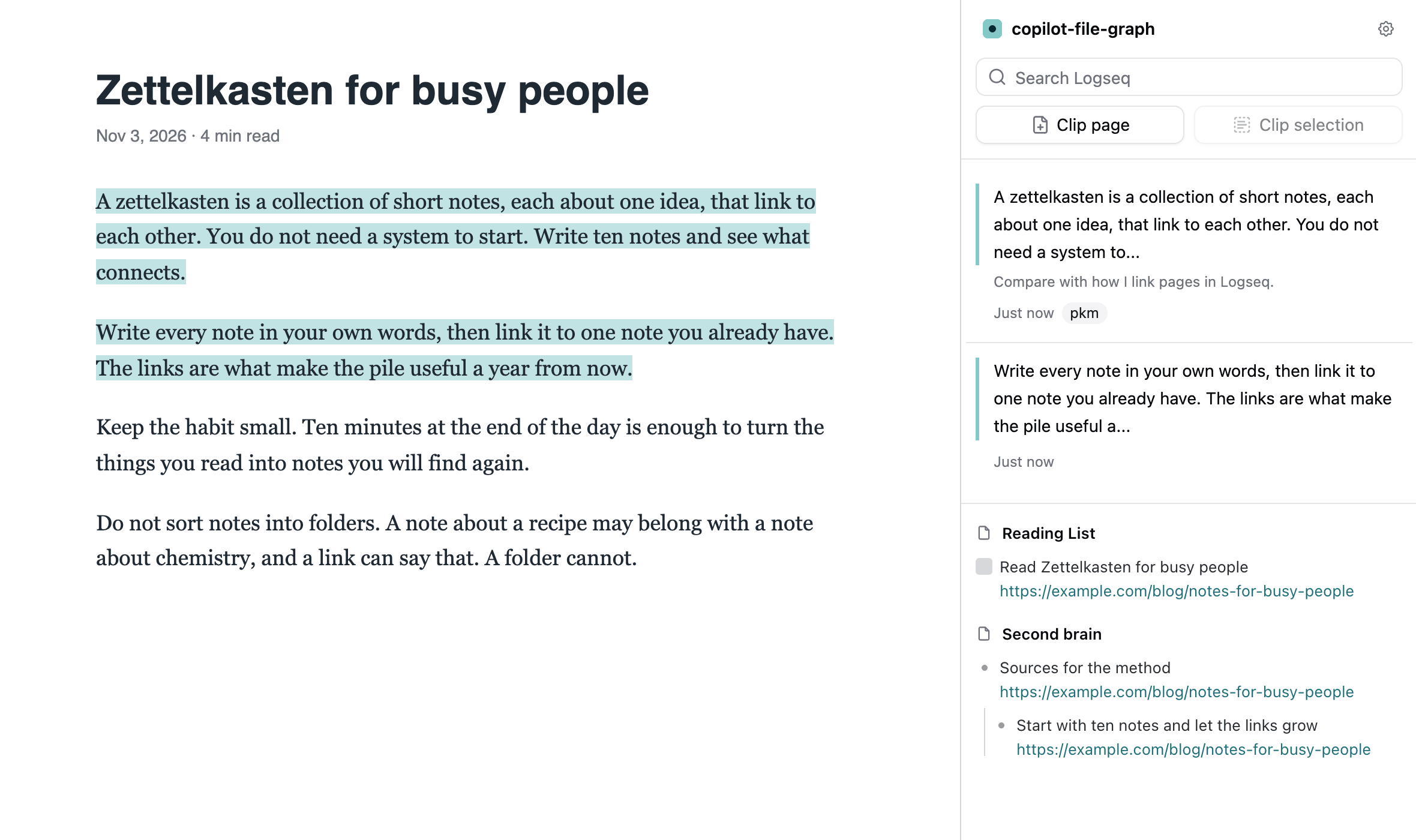
The sidebar is about the page you are reading. It lists the highlights you saved on it and the notes in your graph that mention its address. Its header has a search of your graph and the Clip page and Clip selection buttons.
It opens in your browser’s own sidebar: the side panel in Chrome and Edge, and the sidebar in Firefox. Nothing is drawn on top of the web page.
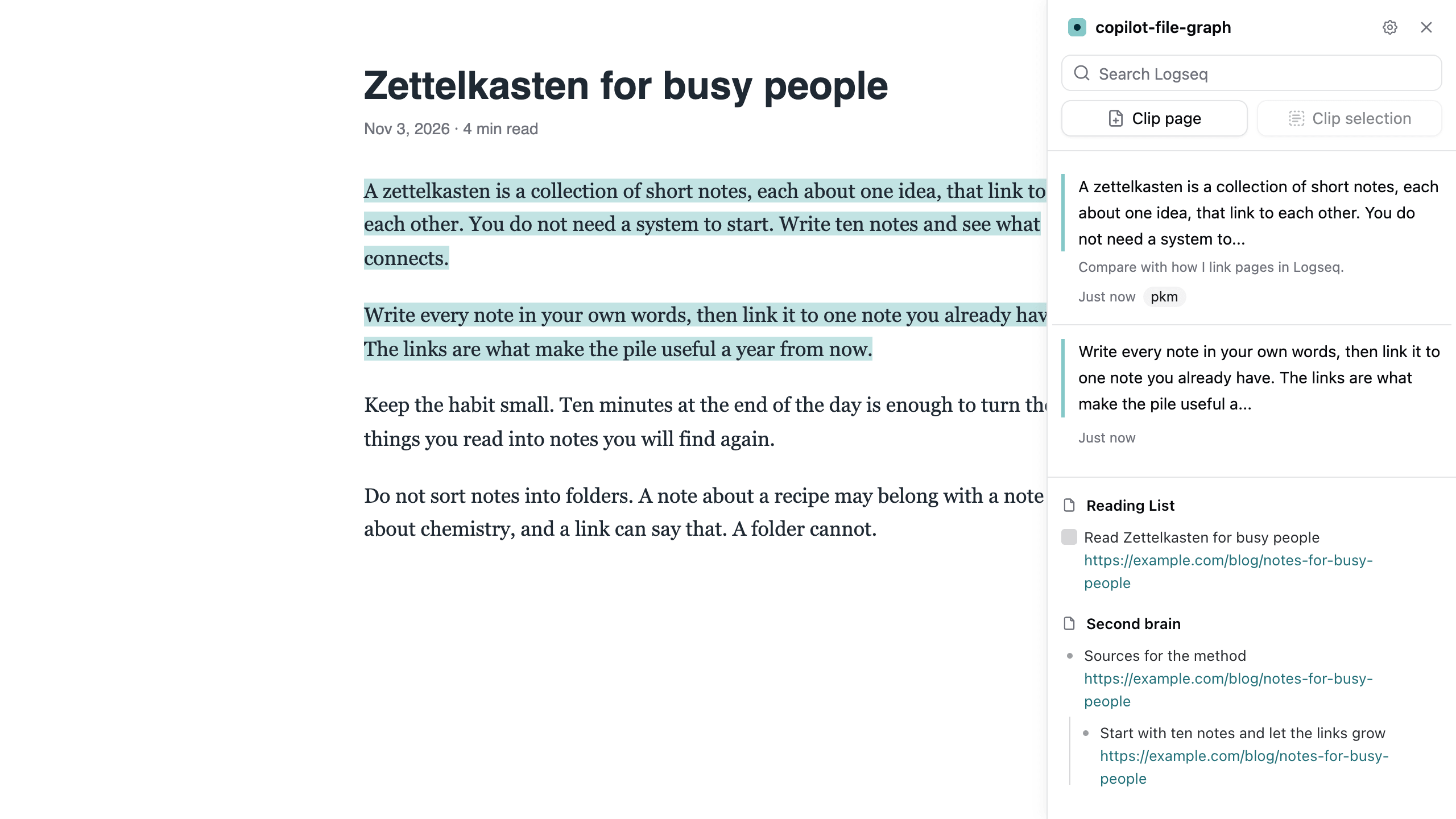
Browsers without a sidebar of their own show the same sidebar on the right side of the page instead. It stays open when you go to another page, in every tab, until you close it with its × button. Arc has a side panel but does not show it, so Logseq Copilot draws the sidebar on the page there too. In other browsers you can choose the sidebar on the page in the options, under Settings, Sidebar, In-page sidebar.

Opening the Sidebar
Section titled “Opening the Sidebar”There are three ways to open it:
- Toolbar icon: Click the Logseq Copilot icon in the toolbar. In Firefox and for the sidebar on the page, click it again to close the sidebar.
- Right-click menu: Right-click on the page, or on selected text, and choose Open sidebar.
- Keyboard shortcut: Press your Open sidebar shortcut. It has no default key, so you need to set one first.
Setting the Keyboard Shortcut
Section titled “Setting the Keyboard Shortcut”The shortcut is unbound by default, because any key combination can clash with the browser’s own shortcuts or with another extension. Choose your own in the browser’s shortcut settings:
- Chrome: Open
chrome://extensions/shortcuts, find Logseq Copilot, and set a key for Open sidebar. - Edge: Open
edge://extensions/shortcutsand do the same. - Firefox: Open
about:addons, click the gear icon, choose Manage Extension Shortcuts, and set a key for Open sidebar under Logseq Copilot.
What the Sidebar Shows
Section titled “What the Sidebar Shows”- The page in the active tab: The highlights saved for the exact address of that page, newest first, then the notes in your graph that mention the page. What counts as a match is tunable per website with Recall Rules.
- It follows the active tab: Switch to another tab, or open another page in the same tab, and the sidebar changes to match. It stays open, so you do not need to close and reopen it.
- Each highlight shows the highlighted text as a quote, your note (if any), how long ago you created it, and its tags. Long text and long notes are cut short, and only the first three tags are listed, followed by the number of the rest.
- A page without highlights or notes shows “Nothing for this page yet”.
- The header names your graph: click it to open the graph in Logseq. The gear opens the extension options.
To close the sidebar, use the close button the browser gives its side panel or sidebar.
Search and Clip
Section titled “Search and Clip”- Search: Type in Search Logseq and press
Enter. The results take the place of the page’s notes until you clear the box or pressEscape. The search stays when the tab goes to another page. Recall rules do not change it. - Clip page: Clip the link of the page in the active tab. See Clipping & Templates.
- Clip selection: Clip the text you selected on the page. It is available only while the page has a selection.
When a clip fails, the sidebar says why under the buttons.
Working with Highlights
Section titled “Working with Highlights”Move the pointer over a highlight, or move to it with the keyboard, to show its buttons.
- Locate it on the page: Click the highlight. The page scrolls to the highlighted text and flashes it briefly.
- Edit the note: Click the pencil button, type the note, then click Save (or press
Ctrl+Enter/Cmd+Enter). Click Cancel or pressEscapeto drop your changes. If the comment popup of the same highlight is open on the page, it shows the new note. - Delete it: Click the trash button. The highlight is removed from the list and from the page right away. There is no confirmation and no undo.
Highlights are created on the page itself by clipping a selection. See Highlight Comments for how to create them.
Pages It Cannot Read
Section titled “Pages It Cannot Read”The sidebar works on web pages only, the ones whose address starts with http:// or https://. On any other page, such as the new tab page, browser pages like chrome://extensions or about:addons, local files, or the pages of other extensions, it shows Not available on this page. Open a web page and the sidebar fills in on its own.
Troubleshooting
Section titled “Troubleshooting”“Reload the page to jump to highlights”:
You clicked a highlight, but the page is not running the extension, so the extension could not scroll to the text. This usually means the page was already open when you installed or updated Logseq Copilot: the extension only attaches to a page when it loads. Reload the page and click the highlight again. On a page where the browser does not let extensions run at all, reloading does not help.
“Couldn’t find this highlight on the page”:
The extension could not find the highlighted text on the page, usually because the content of the page changed since you saved it. The highlight stays in the list, and you can still edit or delete it.
Getting Help
Section titled “Getting Help”If you encounter issues:
- Visit our GitHub Discussions
- Check the setup guide for connection issues
- Make sure your extension is up to date
What’s Next?
Section titled “What’s Next?”- Learn about Highlight Comments
- Explore more features in the extension options
- Join our community for tips and tricks!